SteamOS Handheld Tuning: Getting More Battery and Smoother Frames
A practical guide to SteamOS's Performance menu on PC handhelds: frame limits, refresh rate, VRR, TDP, and GPU clocks, with what's verified and what varies by device.
By Vet, VetTV Handheld
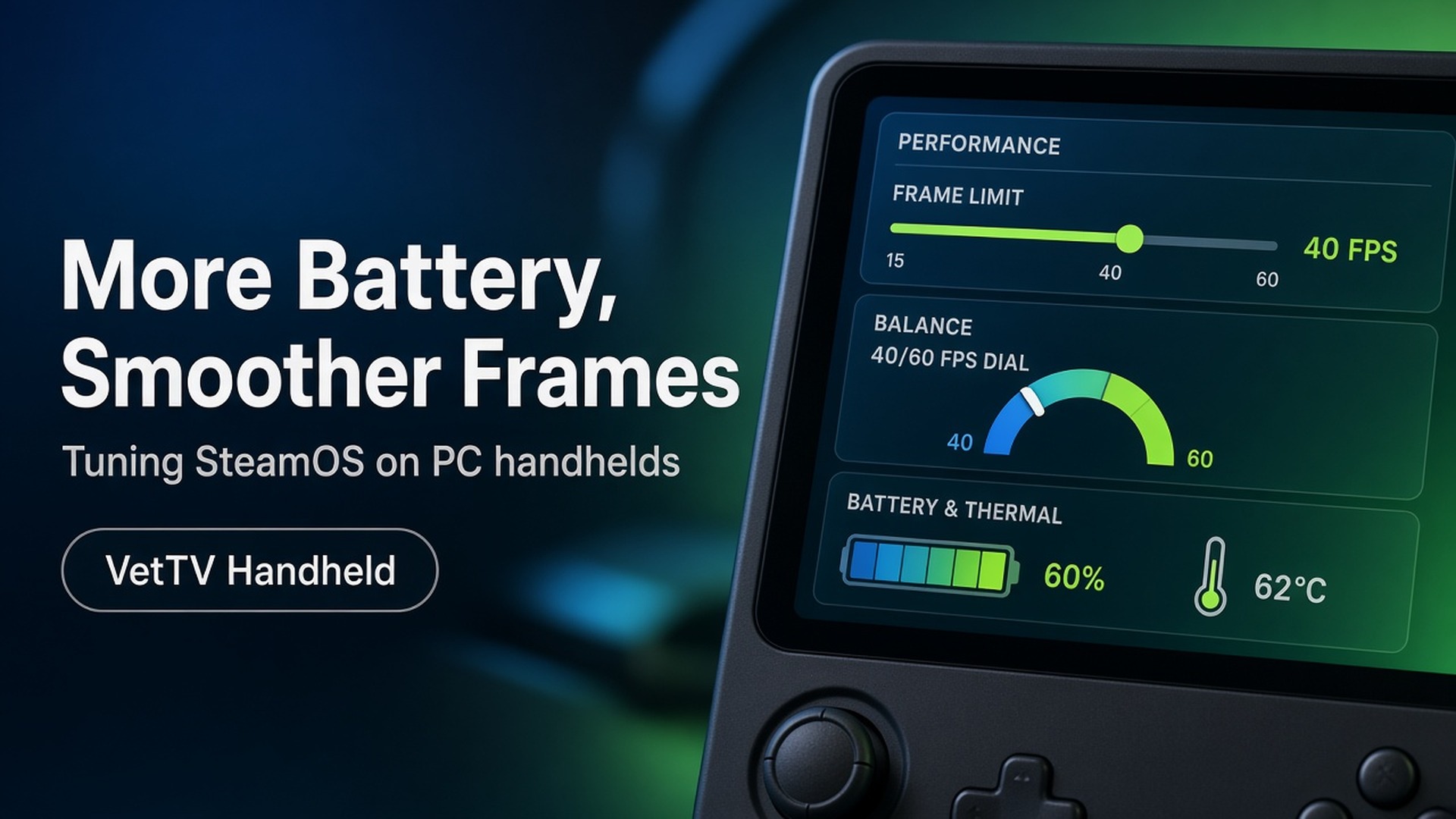
Getting SteamOS installed is half the job. The other half is making your handheld feel good: steady frame pacing, a fan that isn’t screaming, and a battery that lasts more than a commute. SteamOS has a solid set of tools for this built in, and almost all of them live in one place. Here’s how I think about them on PC handhelds, with honest notes on what changes from device to device.
Where the controls live
Open the Quick Access Menu and go to the Performance tab. On Lenovo handhelds, the right-side Legion button opens Quick Access. Turn on Advanced View to see everything. In SteamOS 3.8 on a Legion Go S, one walkthrough showed these options:
- Performance overlay level, for on-screen stats.
- Frame limit and Disable Frame Limiter.
- Variable refresh rate (VRR) and Allow Tearing.
- Half Rate Shading.
- TDP limit.
- Manual GPU clock.
- Scaling mode and Scaling filter.
The important caveat: not every control works on every device. In that same Legion Go S walkthrough on an early SteamOS 3.8 build, the TDP limit slider showed as not yet available. On other devices it works. What you see depends on your hardware, your SteamOS version, and how well SteamOS supports that device.
1. Turn on the overlay first
Before you change anything, turn on the performance overlay so you can see your frame rate and frame times. Tuning without numbers is guesswork. Pick a repeatable spot in a game, like a benchmark or the same stretch of map, and compare settings there.
2. Cap your frame rate
This is the biggest win for battery and smoothness. A steady 40 or 60 fps feels better than an uncapped number bouncing around, and the device doesn’t burn power on frames you don’t need. Match the cap to your refresh rate (for example 60 fps at 60Hz, or 40 fps at 40Hz) for even pacing.
If your screen and setup support it, VRR smooths out frame-time wobble below the cap. One fix in the current SteamOS 3.9.2 Beta matters here: Valve fixed the “Disable Frame Limiter” toggle not working while VRR is enabled. The 3.9 branch also fixed frame limits giving lower FPS than intended on certain external displays. If the limiter has behaved oddly for you on Stable, that’s why.
3. Use TDP where your device supports it
TDP, the power limit, has the most direct effect on battery and heat. Lower it until your frame-rate cap starts to slip, then nudge it back up. That’s the sweet spot for that game. Some guides note that SteamOS remembers performance settings per game, but check how your build handles it.
On devices where Valve’s TDP slider isn’t available, manufacturers sometimes offer hardware shortcuts. On the Legion Go S under SteamOS, one walkthrough showed holding the right Legion button and pressing Y to cycle Lenovo’s thermal modes, which Lenovo lists as Quiet (10W), Balance (15W), Performance (30W), and a Custom mode. These are firmware power modes, not a promise of a certain battery life. I haven’t confirmed the same shortcut behaves identically on the original Legion Go, so test it on yours.
There are also community Decky plugins for Legion TDP control, such as LeGoTDP, which offers presets, custom limits, per-game profiles, and separate limits for battery and charging. Its README highlights an extended range on the Legion Go 2. Community plugins aren’t from Valve or Lenovo, so check what device support each one lists before you install it.
4. Manual GPU clock: handle with care
A manual GPU clock can help stop frame-time spikes in some games, but it can also waste power if it’s set higher than the game needs. I leave it on automatic unless a specific game stutters, and I only change one thing at a time.
5. Scaling and lower render resolution
Running a game below native resolution and letting SteamOS scale it up (the Scaling mode and Scaling filter options) is one of the easiest ways to buy back performance, especially on the high-resolution screens many PC handhelds have. Combine it with a frame cap for the best battery gains.
6. Half Rate Shading
Half Rate Shading is in the Performance menu too. Games and hardware respond differently, so treat it as an experiment: turn it on, watch the overlay and the image quality, and keep it only if you like the result.
7. The boring wins: brightness and radios
Screen brightness is one of a handheld’s biggest power draws. Turning it down a notch often buys more time than any tweak above. Turning off Wi-Fi for offline games helps too. Several optimization guides recommend both.
My simple starting recipe
- Overlay on, so I can see what’s happening.
- Frame cap matched to the refresh rate: 40 for battery, 60 when plugged in.
- VRR on where supported, especially on the 3.9.2 Beta with its limiter fix.
- Power limit lowered until the cap slips, then back up a step.
- Lower render resolution with scaling for heavy games.
- Brightness down a bit, Wi-Fi off for offline sessions.
That’s a starting point, not a rule. Every game behaves differently. Tell me your favorite settings for your handheld in the comments, and I’ll test the popular ones on the channel.
Subscribe at youtube.com/@VetTVHandheld.
Sources
- YouTube walkthrough, “How To Install SteamOS On Legion GO S - Full Install Guide” (SteamOS 3.8 Performance menu tour): https://www.youtube.com/watch?v=tx06GSzlvEI
- Handheld Atlas, “Legion Go S Power Modes: Windows vs SteamOS”: https://www.handheldatlas.com/guides/legion-go-s-power-modes-windows-steamos
- GamingOnLinux, “SteamOS 3.9.2 Beta brings fixes for VRR, VR Streaming, Remote Play, Boot Time and more” (Sept 26, 2026): https://www.gamingonlinux.com/2026/09/steamos-3-9-2-beta-brings-fixes-for-vrr-vr-streaming-remote-play-boot-time-and-more/
- Tier1Settings, “Legion Go 2 Optimization Guide: SteamOS Settings for FPS and Battery”: https://tier1settings.com/legion-go-2-optimization-guide/
- PC Gamer, Legion Go S on SteamOS: https://www.pcgamer.com/hardware/handheld-gaming-pcs/ive-swapped-windows-for-the-latest-steamos-build-on-my-legion-go-s-and-im-not-going-back/
- LeGoTDP README (community Decky plugin): https://github.com/Rayekkk/LeGoTDP/blob/main/README.md